01 / A NEW PERSPECTIVE
How does DLSS 5 AI change the look of games?
Neural rendering uses artificial intelligence to process the game image. In the launcher, you can adjust intensity, local lighting, structure and neural resolution. The result can change the appearance of surfaces, lighting and details, with substantial differences between games and scenes.
It offers a way to revisit classics and experiment with more realistic graphics. AI can also change details you prefer in the original: compare characters, environments and text before choosing your settings.
How the OldGames integration works
The launcher uses an experimental community integration, with ReShade, RenoDX and DLSS5-Feeder. It processes the image produced by the emulator. An available profile lets you try the integration; it does not certify every game for that console.
The official NVIDIA DLSS 5 description presents 3D-guided neural rendering, tuned by the developers of each game. The community adaptation used here follows a different integration path; its results and compatibility are not equivalent to an official implementation in every emulated game. The DLSS5oneclick project documents the community approach.
In 2D games, including many Super Nintendo and Mega Drive titles, sprites do not provide the depth of a 3D scene. The image may change, but the game does not acquire 3D models, new levels or textures remade by its creators.
02 / YOUR LIBRARY
One launcher for generations of emulators
OldGames launches emulators directly on Windows. The library brings your games together while each emulator keeps its own video and controller options. Version 1.4.23 offers 32 main console profiles; the package includes PCSX2, Dolphin and Azahar. Other emulators are imported separately in Settings.

PlayStation 2
PCSX2
Included
GameCube and Wii
Dolphin
Included
Nintendo 3DS
Azahar
Included
PSP and PlayStation
PPSSPP / DuckStation
Import emulator
Nintendo DS
melonDS
Import emulator
SNES, Mega Drive and more
RetroArch + cores
Import emulatorProfiles also cover NES, Nintendo 64, Game Boy, Game Boy Advance, Master System, Saturn, Dreamcast, Neo Geo, arcade and Capcom System I, II and III. Required cores and files vary by system. See the full list and what comes with the download.
03 / FEATURED CLASSICS
Need for Speed: Most Wanted and Resident Evil 4 on PS2 with AI
Street racing, horror and action: PlayStation 2 has very different visual styles to rediscover. Need for Speed: Most Wanted and Resident Evil 4 are two classics you can explore with PCSX2 in the launcher, using them as a starting point to compare the original graphics with the available adjustments.
The covers below show the original PS2 games. These features suggest scenes to compare and still need individual neural-mode validation; confirmed execution records appear in the next section.
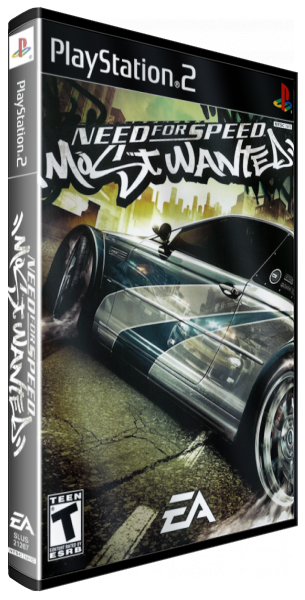
Need for Speed: Most Wanted
Cars, police pursuits and the streets of Rockport define the 2005 Most Wanted. If you want to try PS2 Most Wanted on PC with AI graphics, start by keeping the racing smooth in the emulator.
When trying neural mode, compare car bodies, asphalt, shadows and the horizon. Make the comparison while the car is moving: signs, the speedometer and the minimap should remain clear. If you see trails or flickering details, reduce intensity and neural resolution.
Find Most Wanted in the catalog →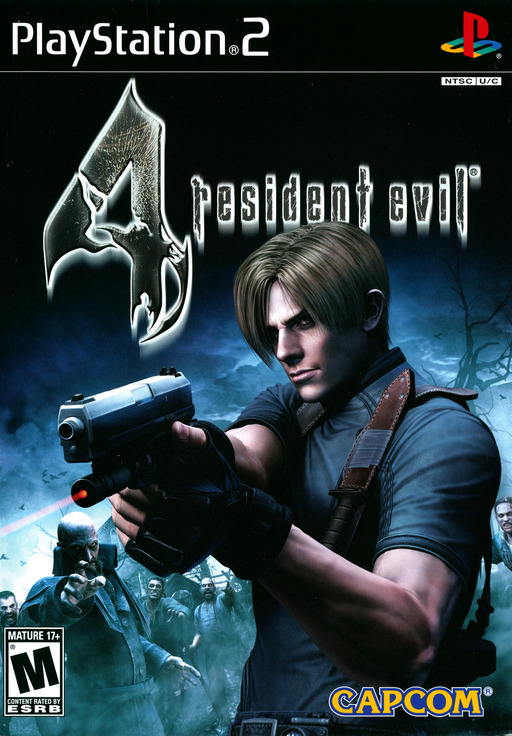
Resident Evil 4
Leon’s adventure in the original PS2 Resident Evil 4 combines rural settings, dark interiors and over-the-shoulder combat. These scenes are useful for observing how lighting and contrast shape the atmosphere.
When adjusting AI graphics, look at faces, clothing, vegetation and details in dark areas. Avoid brightening the image so much that it loses its horror atmosphere. Check the aiming reticle, inventory and subtitles too. The integration does not turn this edition into the 2023 remake.
Explore PCSX2 in the launcher →More PlayStation 2 classics to explore
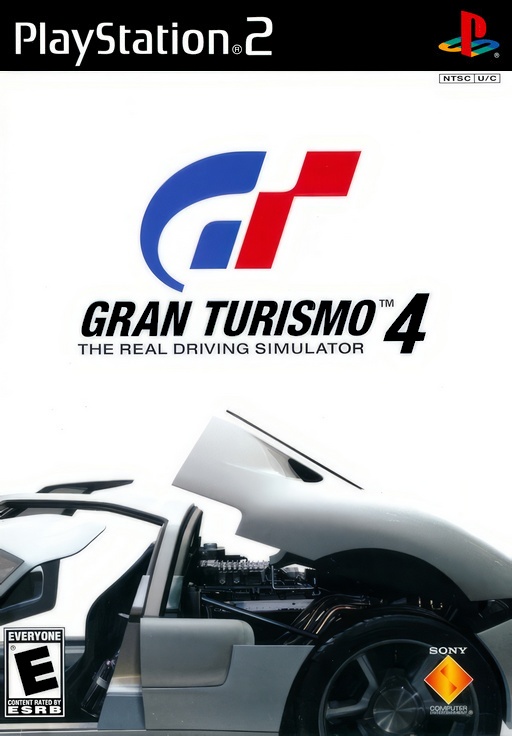
Gran Turismo 4
Compare car bodies, track markings and instruments. Prioritize a consistent image during races.
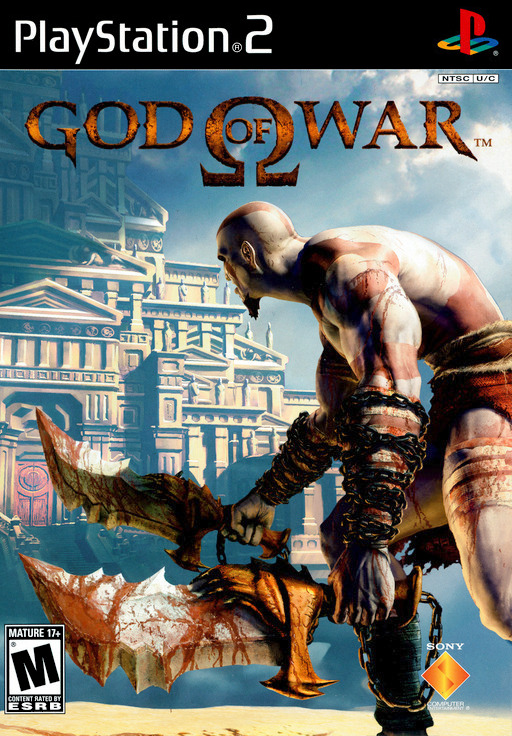
God of War
Watch characters and effects during combat. Check that the environment remains readable when the camera changes.
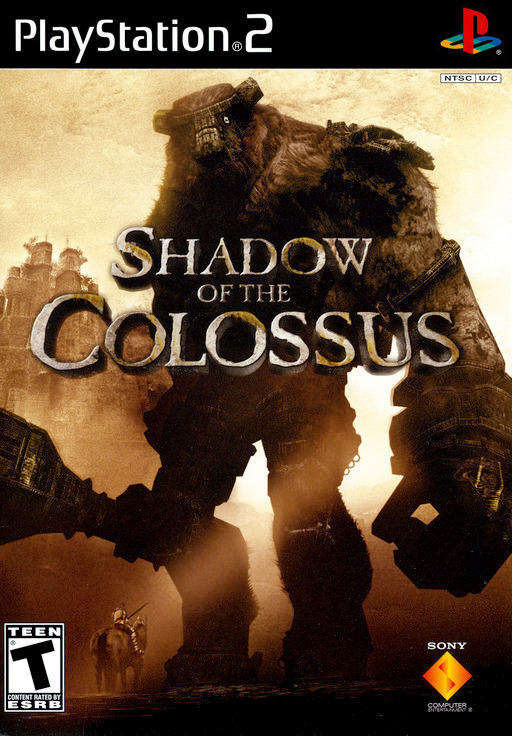
Shadow of the Colossus
Examine landscapes, vegetation and details on the colossi. Maintain good emulation speed before enabling AI.
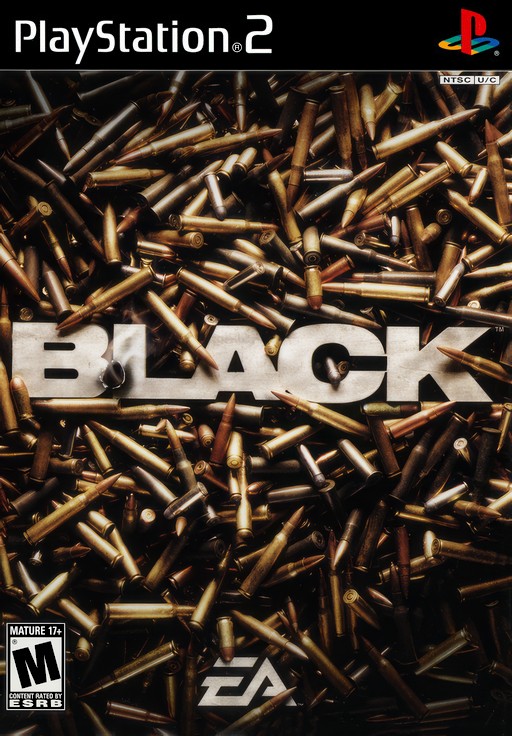
Black
Explosions, smoke and detailed environments help reveal the cost of the effect. Compare combat sections as well as menus.
Covers identify the games for editorial purposes; they are not screenshots of the AI effect. Artwork belongs to its respective owners. Sources: the OldGames catalog and the PS2 Covers collection.
Open your local games in the launcher or browse the PlayStation 2 catalog. A game appearing in this guide does not mean it is included in the launcher download.
04 / TEST NOTES
Mario Kart, Burnout, GoldenEye: what has been verified?
The examples below showed game output and successful neural evaluation records in local OldGames tests. Sessions ran on a GeForce RTX 5050 Laptop with driver 616.92, on September 17, 2026.
Mario Kart DS and Mario Kart 7
Tested in melonDS and Azahar. Tracks, karts and menus are useful for observing changes in color, outlines and readability when toggling AI.
Explore Nintendo DS → Explore Nintendo 3DS →Burnout Dominator
Tested in PPSSPP with DirectX 11. Compare cars and the track in motion: a good still image needs to remain readable during a race.
Explore PSP →Luigi’s Mansion
Tested in Dolphin with DirectX 12. Dark environments help you assess lighting and detail. There were pauses in the sample; adjust AI settings to suit the scene’s workload.
Explore GameCube →GoldenEye 007 and Ace Combat 2
Tested with RetroArch for Nintendo 64 and DuckStation for PlayStation. Watch the stability of small objects and on-screen indicators in motion.
More Nintendo 64 games → More PlayStation games →3 Ninjas Kick Back
Tested on Super Nintendo through RetroArch. This is an example of 2D image processing: compare the original sprites with the effect and choose the look you prefer.
Discover SNES classics →These were short sessions in menus, introductions and demonstrations, with samples of 600 frames. They confirm execution in those scenarios, not complete playthroughs or guaranteed FPS. Other profiles require testing game by game. This list also does not represent official studio support for neural mode.
05 / BEFORE YOU ENABLE IT
Does launcher DLSS 5 work on RTX 20, 30, 40 and 50?
Version 1.4.23 selects the model for your GPU and requires NVIDIA driver 616.64 or later for this integration. Verification differs between generations:
| GPU | Launcher implementation | What has been verified |
|---|---|---|
| RTX 50 | Original model in the community integration | Local execution on the RTX 5050 Laptop in the examples above. |
| RTX 40 | Community variant | Selection and installation verified; gameplay on this generation still needs testing on your PC. |
| RTX 20 / 30 | Community variant, FP16 processing | The same validation limit applies, with a high GPU cost. Start at 50% neural resolution. |
| Other GPUs | Neural-mode support unconfirmed | Use the emulator’s video features that are compatible with your PC. |
The official NVIDIA table lists DLSS 5 3D neural rendering for RTX 50. The community implementation for RTX 20/30/40 does not make those cards officially supported hardware for this feature.
06 / STEP BY STEP
How to enable and configure AI graphics
Open the launcher and sign in
Download OldGames Launcher for Windows and sign in with your OldGames account. Confirm that the game works normally in the emulator before adding the effect.
Choose consoles in the DLSS 5 panel
With the game closed, open Emulators → DLSS 5 → Neural rendering. Enable the feature only for the consoles you want to try.
Adjust and save
Set neural resolution, intensity, lighting and structure. Keep HUD and menu protection enabled. Click Install / save DLSS 5 and wait for the components to be prepared.
Compare during gameplay
Open the panel with Home and toggle AI with Scroll Lock. On PS2, use F10 for the panel and F6 to toggle the effect. Compare the same scene.
Check that processing has started
In the launcher, choose the console and use Check execution. Diagnostics show the neural evaluation record and performance information. A checked option alone does not confirm that AI processed the game.
07 / BALANCING THE IMAGE
How to improve the look while keeping FPS in mind
Neural mode adds work for the GPU and can reduce performance. It should not be treated as a promise of higher FPS. First find stable emulator settings, then introduce AI and compare the result.
- Reduce neural resolution if performance drops. On RTX 20/30/40, start at 50% and watch for smooth motion. The effect becomes less detailed, but the processing load decreases.
- Change one setting at a time. The emulator’s internal resolution and neural resolution are separate controls. Changing both together makes it harder to identify the cause of a slowdown.
- Test movement, menus and audio. Look for unstable outlines, distorted letters and stutters in demanding sections. HUD protection helps, but it does not guarantee that all text stays intact.
- Use the original image when it works better. You can toggle the effect during gameplay or disable the integration in the launcher for the next session.
Video settings and controller mapping still matter. An AI mode cannot fix unsuitable emulator settings, insufficient memory or CPU limitations on its own.
08 / QUICK ANSWERS
Frequently asked questions
Does AI mode work in browser emulators?
The feature described in this guide belongs to the Windows launcher and the native emulators configured within it. Opening a game directly on the website does not enable this integration.
Does the download include every emulator?
Package 1.4.23 includes PCSX2, Dolphin and Azahar. Other emulators are imported under Settings → Emulators, including from a RetroBat folder. Each system’s required cores and files must be available.
Does DLSS 5 make every game realistic?
Results vary with the game’s style, the scene and the available data. Some 3D games can gain a different look; others show artifacts. 2D sprites do not become 3D scenes. Compare the effect with the original to decide.
Do I need AI to play through the launcher?
No. Neural rendering is optional and can be selected per console. You can use the launcher and the emulators’ graphics options without enabling it.
Is the launcher an official NVIDIA product?
No. OldGames is an independent project. DLSS and GeForce are NVIDIA trademarks; the emulators and games mentioned belong to their respective projects and owners.
NEXT SESSION // ON YOUR PC
Choose a classic.
Find your look.
Explore the launcher, check the available emulators and start with settings suited to your computer.
Download OldGames Launcher Windows 10/11 · x64 · English, Portuguese and Spanish